Getting Started on UCTalent: A Guide to Completing Your Profile and Applying for Jobs
Step 1: Sign-in and Registration

When you access UCTalent (e.g., app.uctalent.io), you will see the Sign in screen with multiple options:
- Email Sign-in: Enter your email address (e.g.,
dung.nguyen+test02@uctalent.io) and click the arrow to proceed.- 📝 Email Verification Note: When signing in with Email, UCTalent uses a Magic Link or passwordless authentication flow. Instead of entering a traditional password, the user will receive an email containing a secure link to verify their email and complete the sign-in process.
- Quick Sign-in/Registration via Social Accounts: Use Google, GitHub, Discord, Telegram, or X (Twitter).
- Web3 Sign-in:
- Use Passkey.
- Connect a Wallet (Connect a crypto wallet).
After signing in or registering, the system may ask you to fill in some basic information.
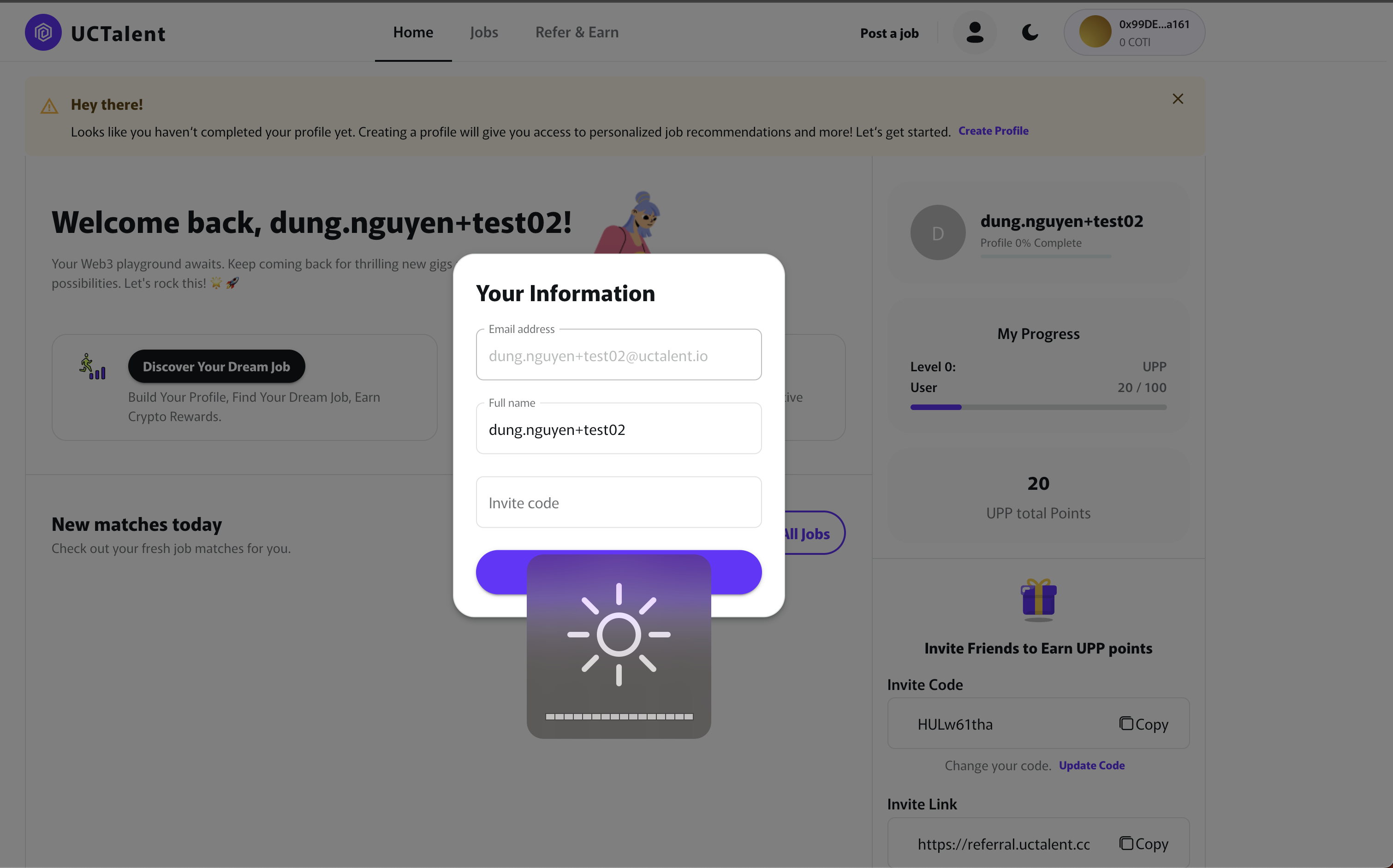
You will be asked to confirm your Email address and Full name. This is also where you can enter an Invite code to earn UPP reward points.
Step 2: Onboarding and Profile Building


To help UCTalent select the right positions for you, the system will initiate the Onboarding process:
2.1. Provide Job Preference Information
- Upload CV/Resume: You can choose to Fill In Manually or Upload CV/Resume. Uploading your CV helps the system automatically fill in information, saving you time.
- Click the CONTINUE button to proceed.
2.2. Complete Personal Profile
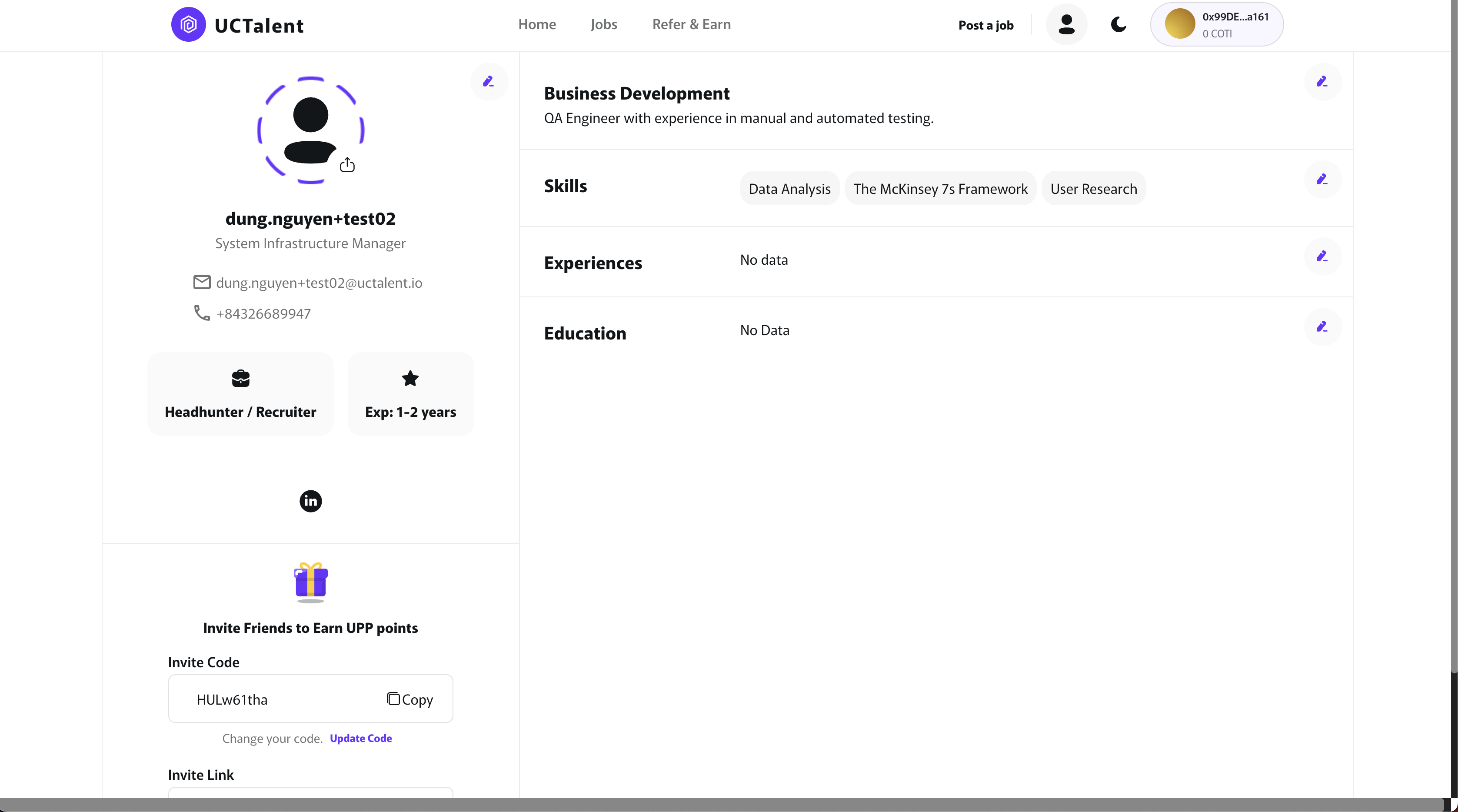
After completing Onboarding, you will land on your Profile page. You need to complete all the following sections (click the pencil $\text{()}$ icon to edit):
- Basic Information: Current position (e.g., System Infrastructure Manager), Email, and phone number.
- Headline: A summary line of your experience/role, e.g., QA Engineer with experience in manual and automated testing.
- Skills: Add your professional skills (e.g., Data Analysis, The McKinsey 7S Framework, User Research, etc.).
- Experiences & Education: Click to add detailed work history and academic qualifications.
Tip: A complete profile increases your visibility to Headhunters/Recruiters and helps you receive relevant job suggestions.
2.3. Email Verification Warning And Requirements (AFTER SOCIAL/WEB3 SIGN-IN)
This section is inserted as requested:
Applicable Scenario: If you sign in using social accounts (GitHub, Discord, Telegram, X/Twitter) or Web3, have completed Onboarding (Step 2), but the associated email address has not been verified, you will be redirected to the Home page with a prominent warning:

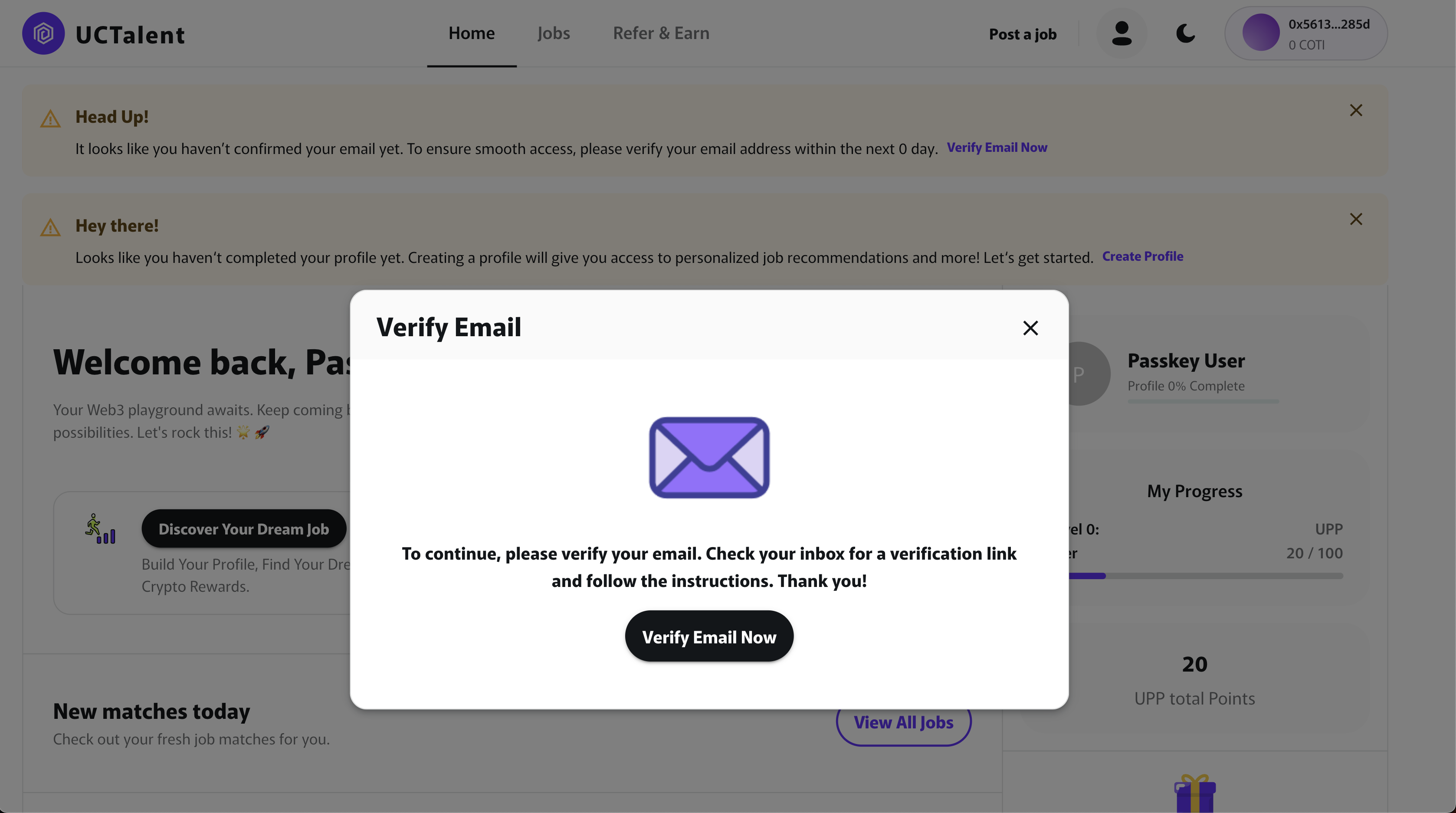
Your email address needs to be verified to receive job notifications and ensure account security. Please check your inbox and click the Magic Link (Verification Link) sent by UCTalent.
Step 3: Job Search and Application (Jobs)
3.1. Job Search
- Navigate to the Jobs tab.
- Use the Search Bar: Enter Job Title, Keyword, Company and City, country, region.
- Filter Jobs: Use advanced filters such as: Location Types, Date Posted, Job Types (Part-Time, Full-Time), Experience Levels, Salary Ranges, and Domains..
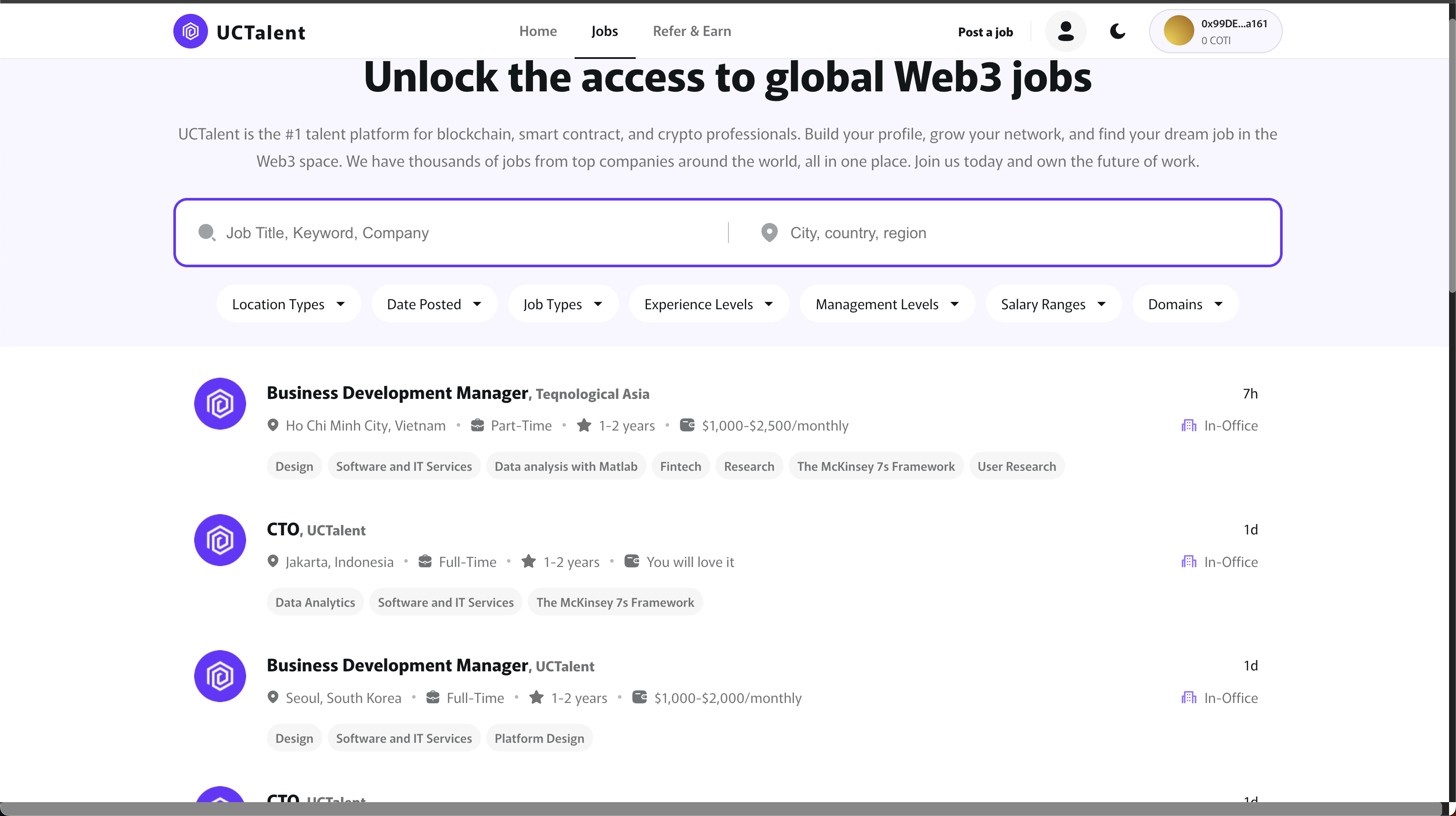
3.2. Application
- Select a Job :Click on the job you are interested in, e.g., Business Development Manager.
- View Details: Carefully read the job description, Responsibilities, and Minimum Qualifications.
- Start Application: Click the Apply button. An application pop-up will appear..
- Fill in Details: Update your Headline, Email, and phone number.
- Select Resume: Choose the CV/resume file you wish to use (the system supports
.doc,.docx,.pdf). - Click the Apply button to submit your application.
- Email Notification: After successfully applying, you will receive an email confirming that your application for the position on UCTalent has been submitted.

Step 4: Application Tracking (Applied Jobs)
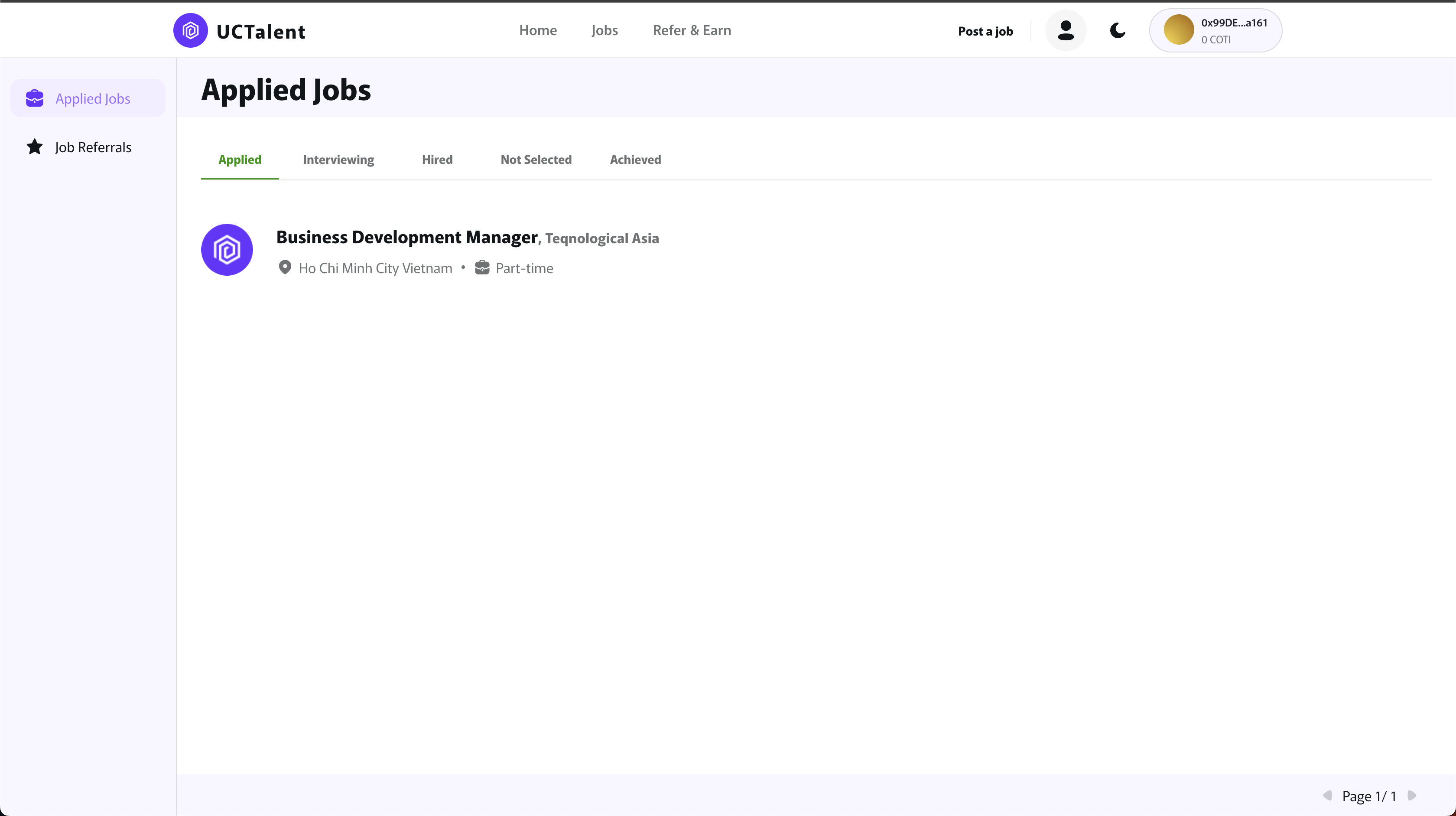
After applying, you can track the status of your applications in the Applied Jobs section (usually located in the left sidebar).
The statuses you can monitor include:
- Applied: Your application has been successfully submitted.
- Interviewing: You have been selected for the interview stage.
- Hired: You have received a job offer.
- Not Selected: The application was not a fit or was unsuccessful in the hiring rounds.
- Archived: Older applications have been archived.