🚀 UCTalent Guide: Referrer Sign-in, Onboarding, Job Referral, and Referral Tracking
Step 1: Sign-in to Refer Talent
1.1. Execution of Sign-in

You can log in to your account using the following methods:
- Social Accounts: Google, GitHub, Discord, Telegram, or X (Twitter).
- Web3 Login: Use a Passkey or Connect a Wallet.
- Email Login: Enter your email address and click the arrow symbol $(\rightarrow)$ to continue.
📝 Note on Email Verification: When logging in via Email, the UCTalent system uses a Magic Link or Passwordless authentication flow. The user will receive an email containing a link to confirm and log in, instead of entering a traditional password. (You can insert a link to a detailed guide on the Magic Link flow here).
After signing in or registering, the system may ask you to fill in some basic information.
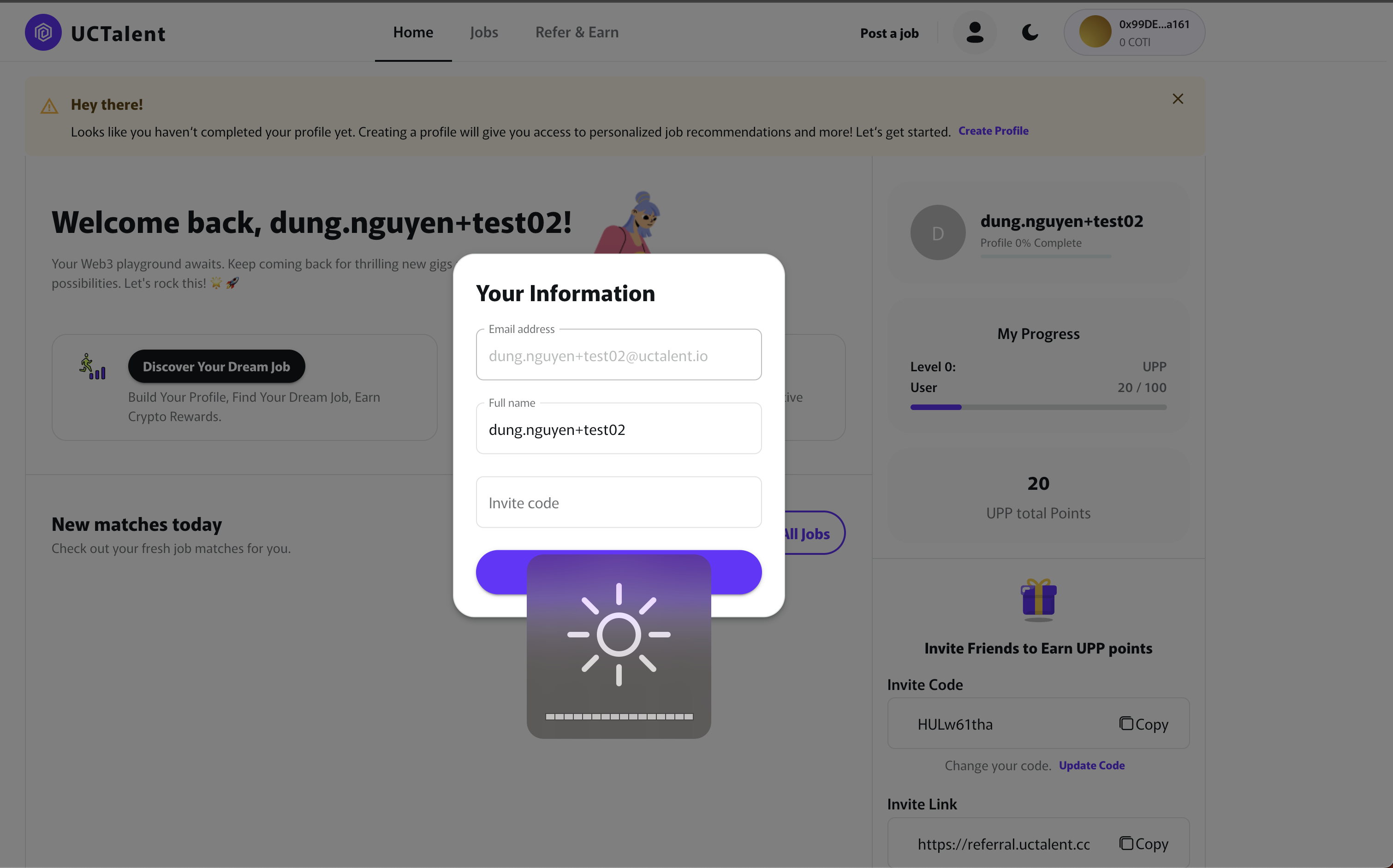
You will be asked to confirm your Email address and Full name. This is also where you can enter an Invite code to earn UPP reward points.
Completing your personal profile helps increase your credibility and grants you access to full features, especially when engaging in the referral system.
Step 2: Profile Completion and Role Setup (Onboarding)


- Profile Creation: Complete the Onboarding process by choosing to Upload CV/Resume or Fill In Manually.
- Information: Fully update your Skills, Experiences, and Education to ensure your Profile is complete.
❗ Important Role Note:
- Any user can refer candidates and earn UPP points when their referrals sign up using their code.
- If you are a Headhunter, Recruiter, or Talent Acquisition professional, ensure you select the appropriate role during the Onb2.oarding or Profile setup phase. This action is key to unlocking advanced referral features, specialized rewards, and maximizing your effectiveness as a Primary Referrer on the UCTalent platform.
2.1. Email Verification Warning And Requirement (AFTER SOCIAL/WEB3 SIGN-IN)
This section is inserted as requested:
Applicable Scenario: If you sign in using social accounts (GitHub, Discord, Telegram, X/Twitter) or Web3, have completed Onboarding (Step 2), but the associated email address has not been verified, you will be redirected to the Home page with a prominent warning:


Your email address needs to be verified to receive job notifications and ensure account security. Please check your inbox and click the Magic Link (Verification Link) sent by UCTalent.
Step 3: Job Referral Process
This process outlines how you refer a candidate directly to an open position.
3.1. Finding the Job and Initiating Referral
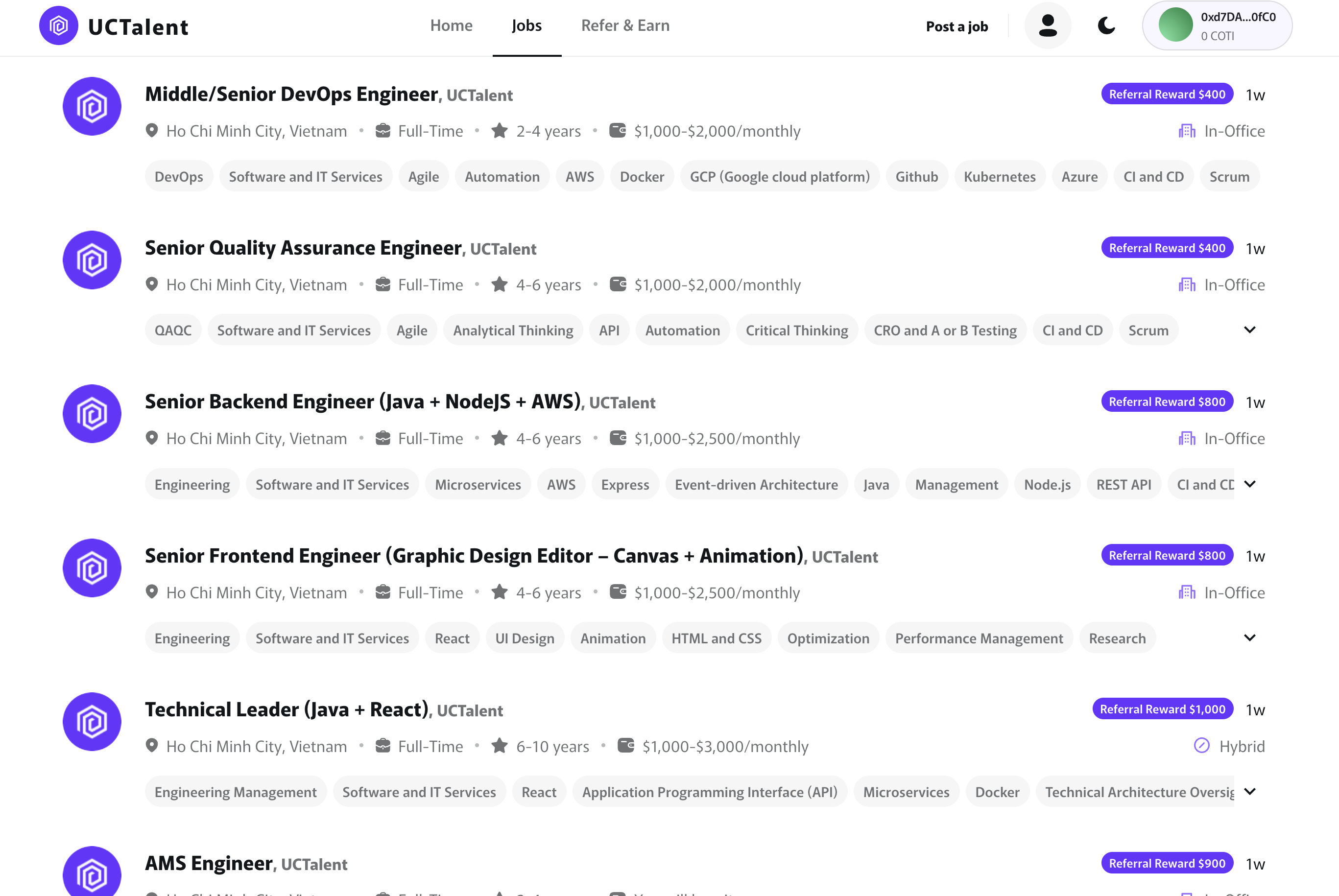
- Search: Navigate to the Jobs tab and find the specific position you wish to refer a candidate for (e.g., Derivative Business Development).
- Initiate: On the job detail page, click the Refer button to open the referral dialog box.
3.2. Completing the Referral Dialog
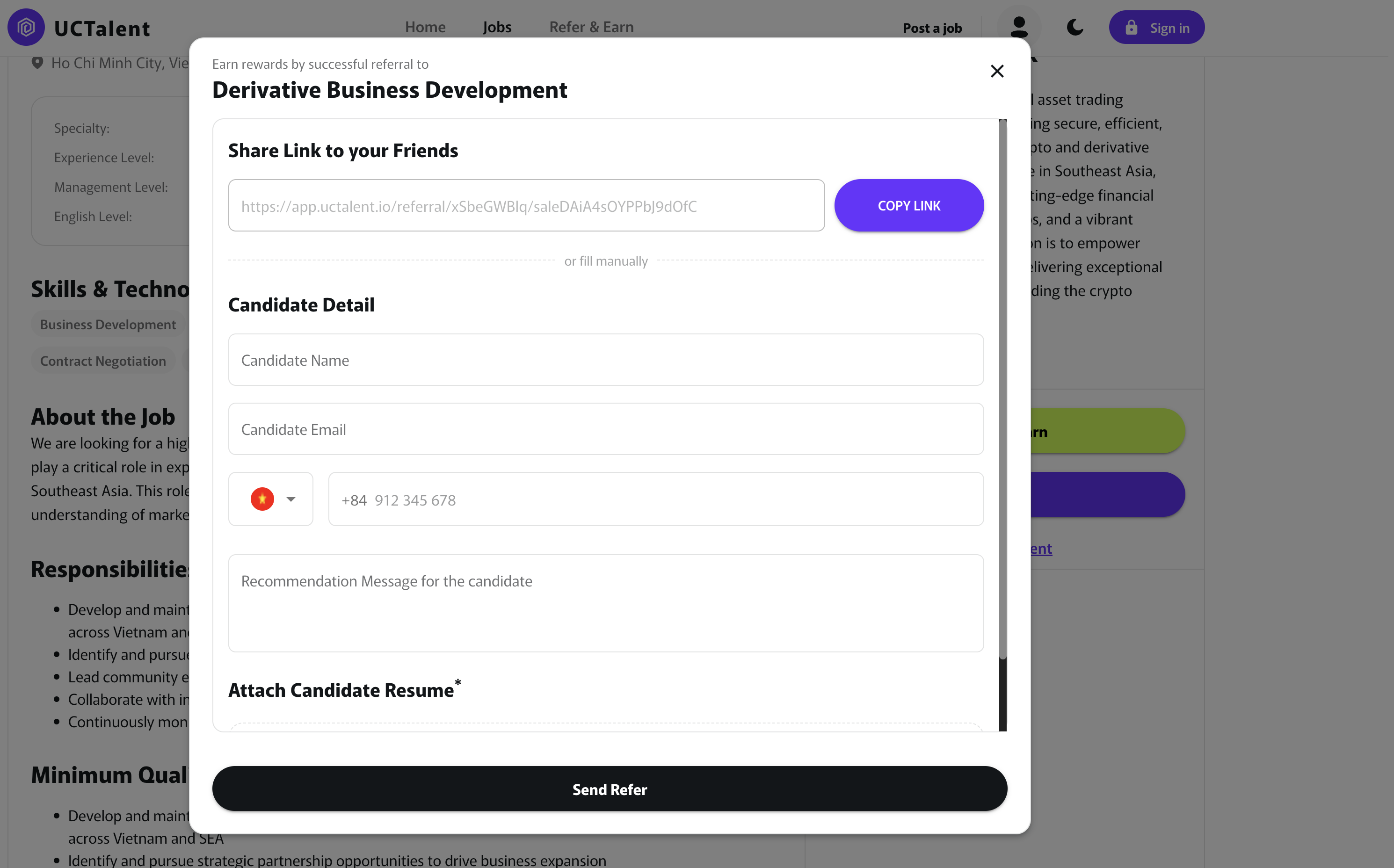
The referral dialog offers two methods:
- Method 1: Share Referral Link (Share Link to your Friends)
- Use your personal Share Link, which is already embedded with your referral code.
- Click COPY LINK and send it to the candidate so they can apply themselves. The candidate will be automatically linked to your account.
- Method 2: Fill Manually (Direct Submission)
- You input the candidate's details directly.
- Candidate Detail: Enter the Candidate Name and Candidate Email.
- Contact Number: Provide the candidate's phone number.
- Recommendation Message: Write a brief recommendation for the candidate.
- Attach Candidate Resume: Upload the candidate's CV/Resume (This is a required field).
3.3. Finalizing the Referral Submission and Email Confirmation
- Once all details are complete, click the Send Refer button to formally submit the candidate for the position.
- Email Confirmation:
- The system will send a confirmation email regarding the successful submission to the candidate's (Referee's) email address.
- The Referrer will also receive a confirmation email stating that their referral submission has been successfully sent.
Purpose: This action officially proposes the candidate for a specific role and initiates your referral tracking process.
Step 4: Referral Tracking
You can monitor the performance of your referrals in the Job Referrals section.
4.1. Accessing the Tracking Page
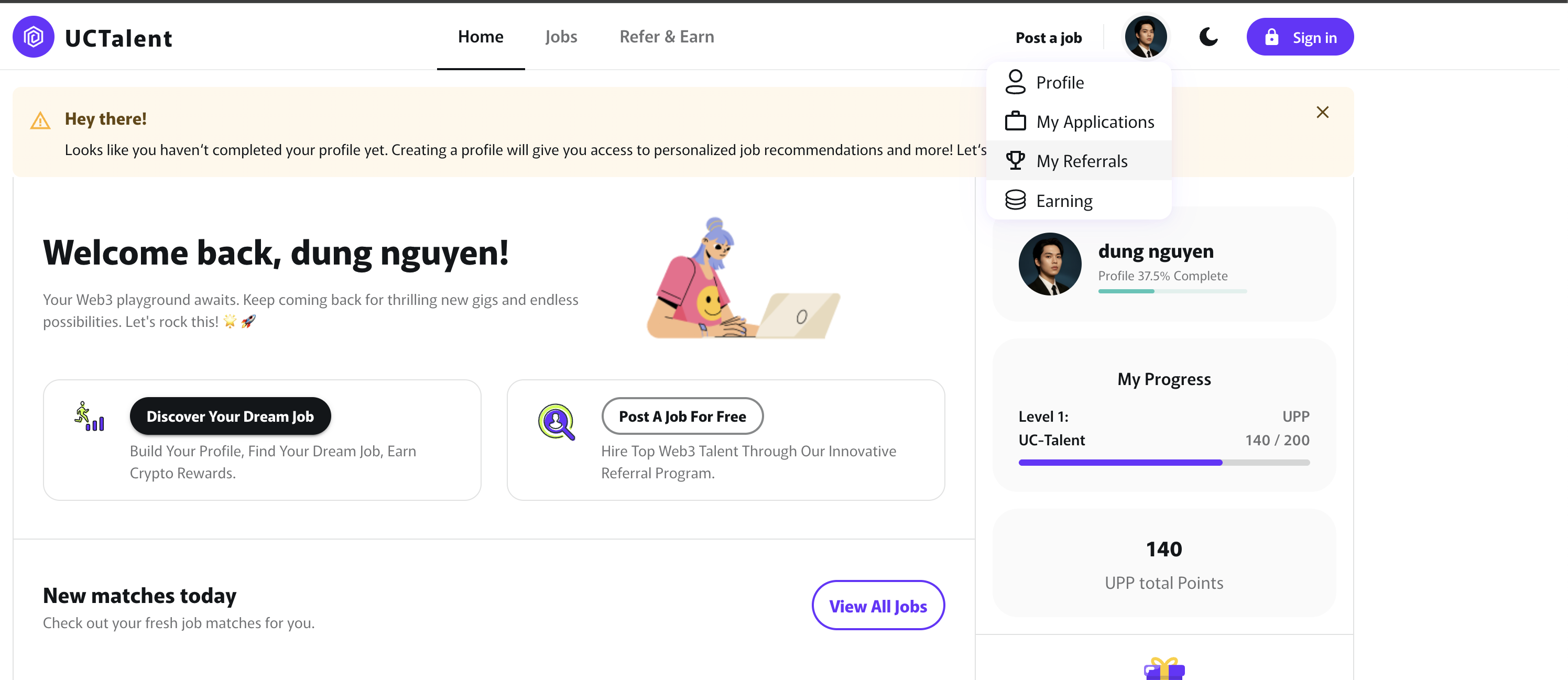
- (Via Home UCTalent): Click the personal/Avatar icon in the top right corner, then select My Referrals (or equivalent) from the dropdown menu
4.2. Understanding Tracking Statuses
The Job Referrals page lists the people you have referred and their current status on the platform:
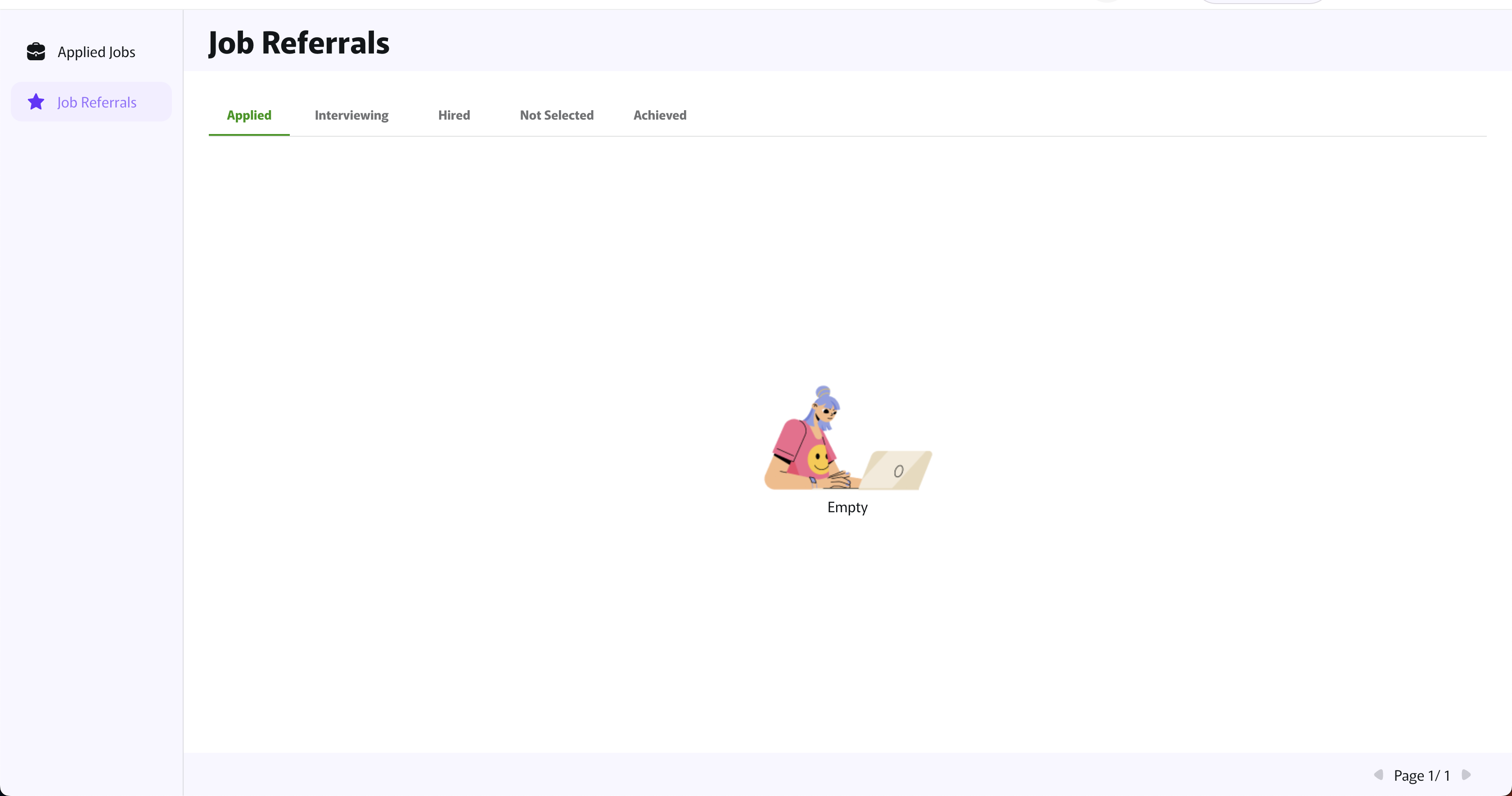
- Applied: The application has been successfully submitted.
- Interviewing: The candidate has been selected for the interview stage.
- Hired: The candidate has been successfully hired through UCTalent.
- Not Selected: The profile was not a fit or was unsuccessful in the hiring rounds.
- Achieved: The processed and archived referrals.
Data Note: If there are no referrals yet, the Job Referrals page will display an "Empty" status.
4.3. Collecting Rewards
When the referee achieves key milestones (especially Hired), you will receive the corresponding UPP points according to UCTalent's reward policy, which are displayed and accumulated in your personal profile.